Skip to content

Website Help Center · Social Media

How to Add a Facebook Business Feed

A Facebook business feed lets visitors see your company's Facebook activity directly on your Site Before Night website. You can add the Facebook section where it makes the most sense on your page, then connect it using your Facebook business Page URL.

Before you start: have the full URL for your Facebook business Page ready. The Facebook feed feature requires a Facebook Company or business Page that is publicly viewable. A private Page will not work with the feed.

Add the Facebook feed to your website

1

Choose where the feed should appear

In your website editor, go to the page where you want the Facebook feed and scroll to the area where you would like to add it.

2

Add a new section

Select the + Add New Section button at that location on the page.

3

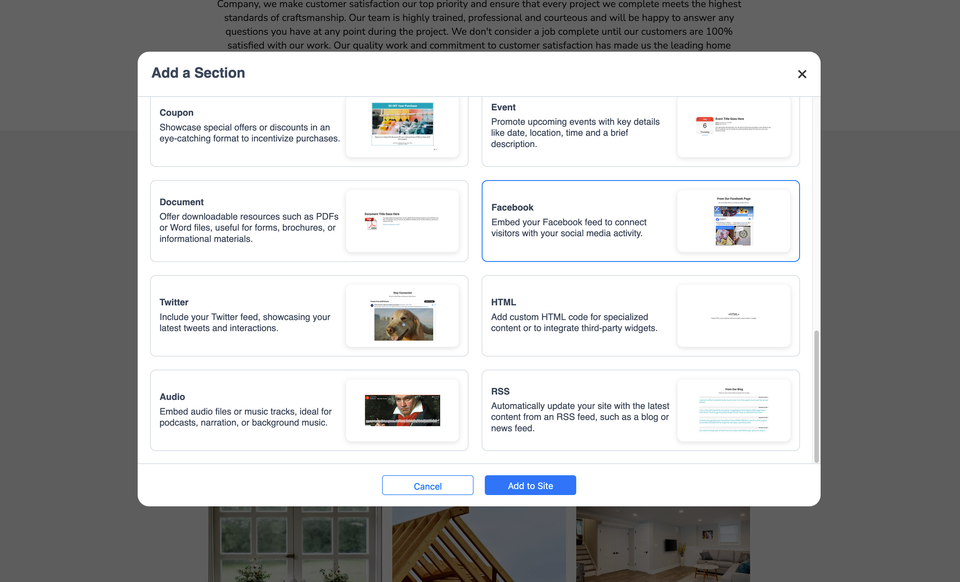
Choose Facebook

In the section choices, locate and select the Facebook option.

4

Add it to the website

With the Facebook section selected, choose Add to Site.

5

Connect your Facebook business Page

Edit the new Facebook section and paste your full Facebook Business Page URL into the appropriate field. You can then make the ordinary section changes available in your website editor.
Facebook feed s1 ss1

If your Facebook feed does not appear

Start with the two details the Facebook feed depends on: the Page address you entered and whether that Facebook Page is publicly viewable.

Check your Facebook business Page URL

Confirm that you pasted the URL for the correct Facebook Company or business Page into the Facebook section. The connected Page must not be private.

What Facebook URL should I use?

Use the full web address for the Facebook business Page you want visitors to see through the feed.

Can I connect a private Facebook Page?

No. The Facebook feed feature described here requires a Facebook Company or business Page that is not set to private.

Still having trouble? If the Page URL is correct and the Facebook Page is publicly available but the feed still does not display properly, contact Site Before Night Technical Support rather than attempting custom code or advanced integration changes.