Skip to content
Website Help Center

How to Add a Page to Your Website

You can add another page when your business has information that deserves its own place on your website—such as a new service, an About page, a gallery, an offer, or another important topic.

Before you begin: have a clear name and purpose for the new page. A simple, descriptive page name makes your website easier for visitors to understand and keeps your navigation organized.
1

Open your page manager

From your website editor, open Pages in the top toolbar and choose Manage Pages. This opens the area where you can add and organize the pages on your website.

H 015 s1 ss1
2

Add the new page

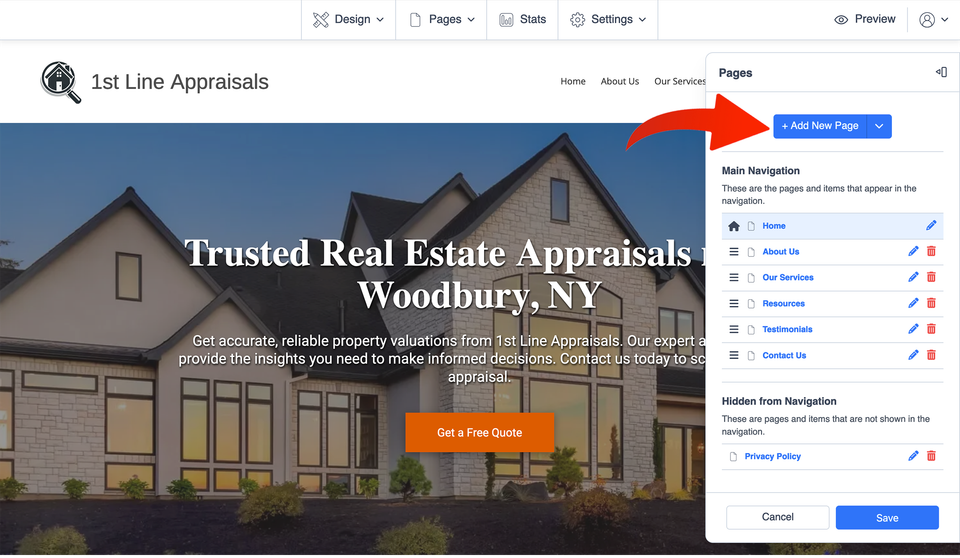
In the Pages panel, select + Add New Page. This starts the process of creating another page for your website.

Think of a page as a separate destination for one main subject. For example, a landscaping company might add a dedicated “Landscape Lighting” page instead of trying to fit all of that information onto its homepage.

Keep the page name simple. Names such as “Commercial Cleaning,” “Our Team,” or “Photo Gallery” are usually easier for visitors to understand than vague labels.
H 015 s2 ss1

3. Name the page and choose its settings

Enter the name you want to use for the page. Then review the available page settings before saving it.

Choose a clear page name

Use wording that tells visitors what they will find there, such as “Roof Repair,” “Meet the Team,” or “Financing.”

Decide where it belongs

Consider whether the new page should appear in your main navigation or belong underneath another page as a sub-page.

Other page options you may see

  • Show or hide the page from your website navigation.
  • Place the page underneath another page.
  • Password-protect the page when appropriate.
  • Exclude the page from your website's internal search.
  • Control whether search engines should index the page.
  • Add page-specific search information.
  • Choose a social sharing image for the page.
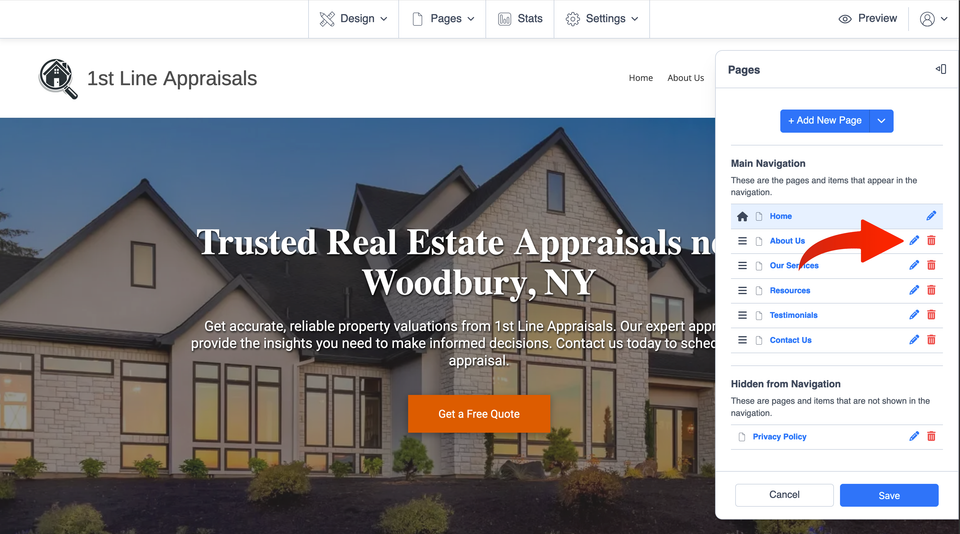
4. Save the page. Once the page name and settings are correct, save your changes. You can return to the Pages panel later and use the pencil icon beside a page when you need to manage its settings.
H 015 s3 ss1

Your new page can keep growing with your business

After the page is created, you can add and update its normal content as your business changes. If you later need to adjust the page itself, return to your Pages panel and use the pencil icon beside that page.

Be careful with the trash icon

Deleting a website page is permanent and cannot be undone. If you are unsure whether a page should be deleted, hidden from your menu, or reorganized instead, avoid deleting it until you know which option you need.

More website help