
Skip to content

Website Help Center

How to Add a Website Slideshow

A slideshow lets you display a collection of images together in one website section. It can be useful when you want visitors to browse several photos, products, services, projects, or other visual content without placing every image in a separate section.

You can add a slideshow as a normal section in your Site Before Night website editor, then personalize its images and display options.

Add the slideshow section

  1. Choose where the slideshow should appear

    In your website editor, go to the page and scroll to the location where you want to place the slideshow.

  2. Add a new section

    Select + Add New Section at that location.

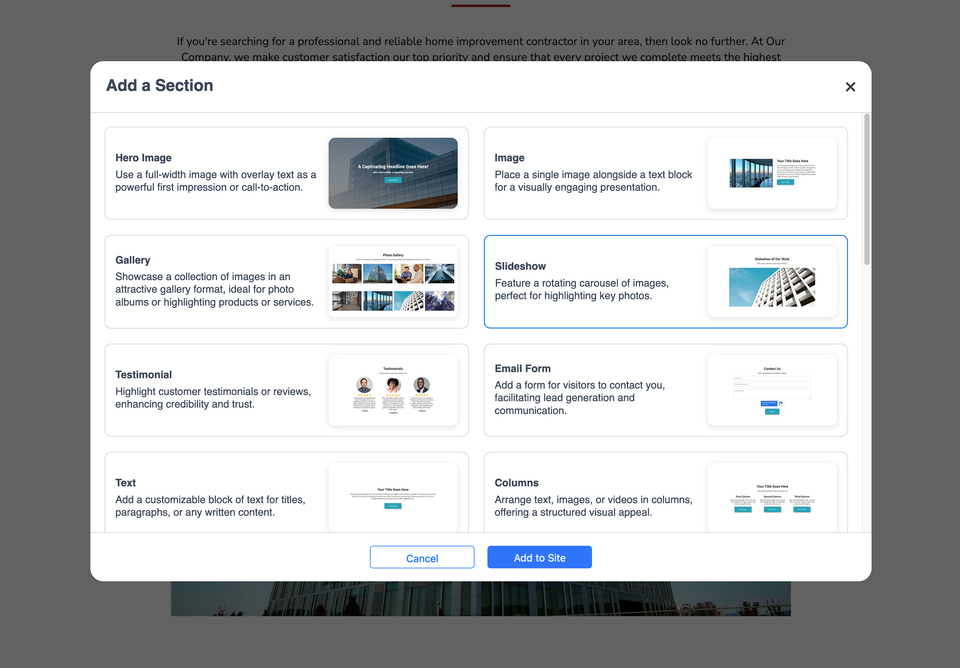
  3. Choose Slideshow

    From the available section types, select Slideshow.
H 025 s1 ss1

Finish adding your slideshow

Add the section to your website

After choosing the slideshow section, select Add to Site.

Personalize the slideshow

Once the section has been added, edit the slideshow to arrange your images and adjust the available display options.

Slideshow options you can adjust

The slideshow editor includes several controls for changing how your images are organized, linked, and displayed.

Reorder images

Drag and drop slideshow images to change the order in which they appear.

Link an image

A slideshow image can link to a web address, another page on your website, an email address, or a phone number.

Full-Width

Use the Full-Width option when you want the slideshow images to expand across the full width of the screen.

Auto-Crop

Auto-Crop crops the slideshow images to matching dimensions for a more consistent display.

Transition

Choose the transition style used as the slideshow rotates from one image to another.

Images shown at once

Choose whether the slideshow features one image or multiple images at the same time on desktop screens.

Need more website help?

Browse more customer editing guides in the Website Help Center. If the Slideshow option or the controls described here are not available in your editor, use Website Technical Help for assistance.