Skip to content
Website Help Center

How to Add an External Link to Your Website Menu

Your website menu does not have to link only to pages on your Site Before Night website. You can also add a menu item that takes visitors directly to a useful page or service hosted somewhere else.

This is useful when an important part of your customer experience lives on another website. For example, you might want visitors to go directly to an online ordering system, appointment scheduler, patient portal, customer login, registration page, or external quote form.

Before you begin: have the exact web address for the external page ready, and choose a short menu label that clearly tells visitors where the link will take them.

Open Manage Pages

From your website editor, open Pages and select Manage Pages. This is where you manage the pages and links that can appear in your website navigation.

Extmenu s1 ss1

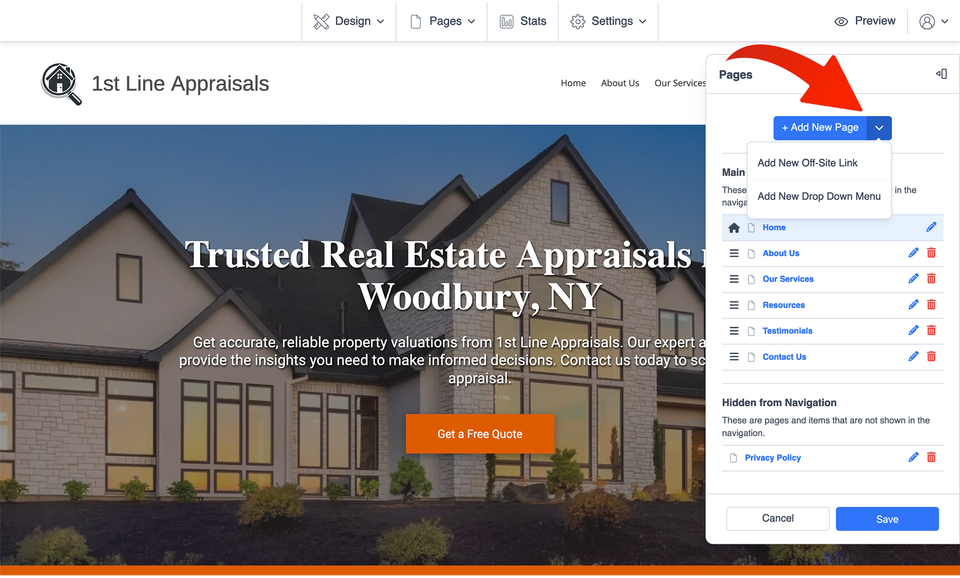
Choose Add New Off Site Link

In Manage Pages, find the +Add New Page control.

Select the down arrow beside it to reveal the additional page options, then choose Add New Off Site Link.

Extmenu s2 ss1

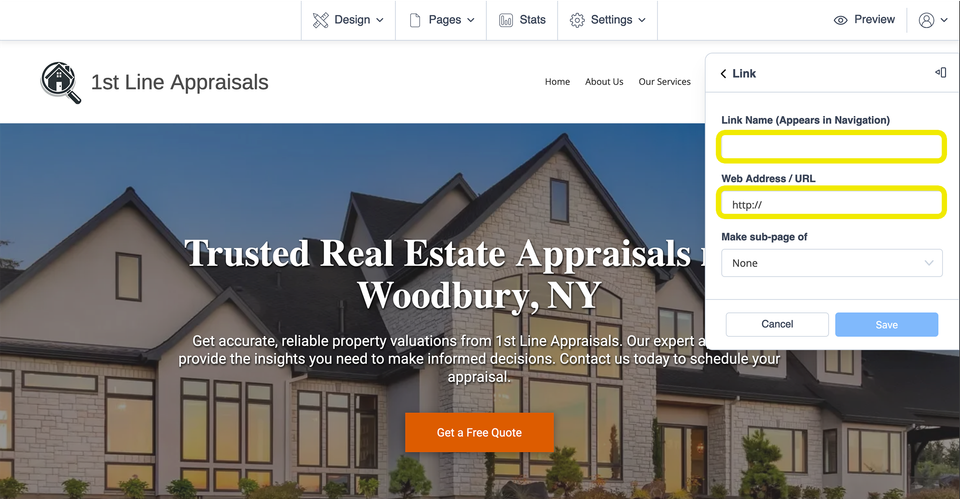
Enter the Menu Name and External URL

Use the fields provided to enter the name visitors should see in your website menu and the web address you want that menu item to open.

Link name Use a short, specific label such as “Book Online,” “Order Online,” “Patient Portal,” or “Customer Login.”
URL Paste the destination address carefully. Using the complete HTTPS web address helps make the destination clear and easy to verify.

If appropriate, the editor also gives you the option to make the external link a sub-page of another page. This can be useful when the link belongs naturally inside an existing dropdown instead of appearing as a top-level menu item.

Extmenu s3 ss1

Check the Link Before You Finish

Once your external menu link has been added, preview your website and test it as a visitor would. Confirm that the menu label is easy to understand and that the destination is the exact page you intended to use.

  • Keep the menu label short enough to scan quickly.
  • Describe the action or destination clearly instead of using vague wording.
  • Test the destination on both desktop and mobile.
  • Recheck the link if the outside service ever changes its web address.

Top-Level Link or Dropdown?

Use a top-level menu item when the destination is especially important to customers. If the external destination belongs with a particular service or topic, placing it beneath another page may create a cleaner navigation menu.

Need help? If the controls shown in this tutorial are not available in your website editor, or something does not work as expected, avoid changing unfamiliar platform settings. Site Before Night can help you determine the appropriate next step.