Skip to content
Website Images & Accessibility

How to Add Image Captions and ALT Text

Captions and ALT text serve different purposes on your website. A caption can give visitors extra information about a photo, while ALT text provides a written alternative that helps people using screen readers understand meaningful images. ALT text can also give search engines additional context about an image.

Image Caption

A caption is visitor-facing text associated with an image. In the website editor, captions can be displayed when an image is enlarged.

Image ALT Text

ALT text describes the useful content or purpose of an image for visitors who may not be able to see it. It is especially important for accessibility.

1. Find the image you want to update

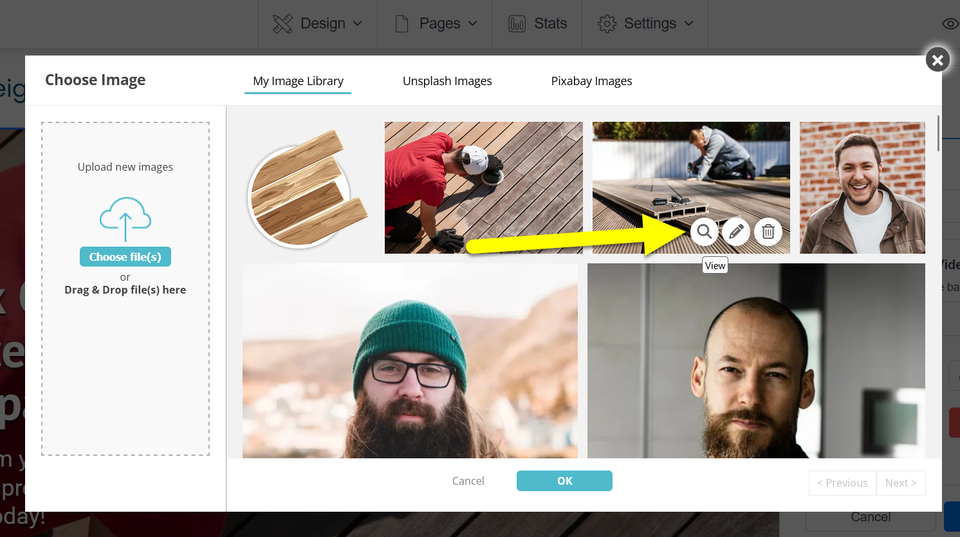
Open the image library for the photo you want to work with. Hover over that image and select the View icon. This opens the image information and settings used for captions and ALT text.
Seo 002 s1 ss1

2. Add the caption and ALT text

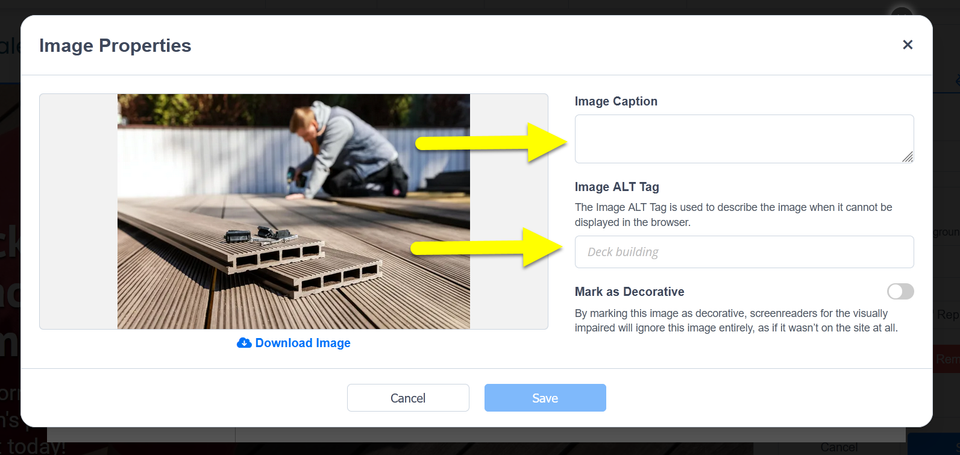
The Image Properties window gives you separate fields for the image caption and the image's ALT text. Use each field for its intended purpose rather than entering the same wording automatically in both.

A

Image Caption

Add a caption when visible context would genuinely help a visitor—for example, identifying a project, employee, location, product, or event shown in the photo.

B

Image ALT Text

Describe the meaningful content or purpose of the image in clear, natural language. Focus on what someone needs to understand about the image in the context of the page.

Simple ALT-text rule: describe what matters about the image, not every visible detail. You usually do not need to begin with phrases such as “image of” or “picture of.”
Seo 002 s2 ss1

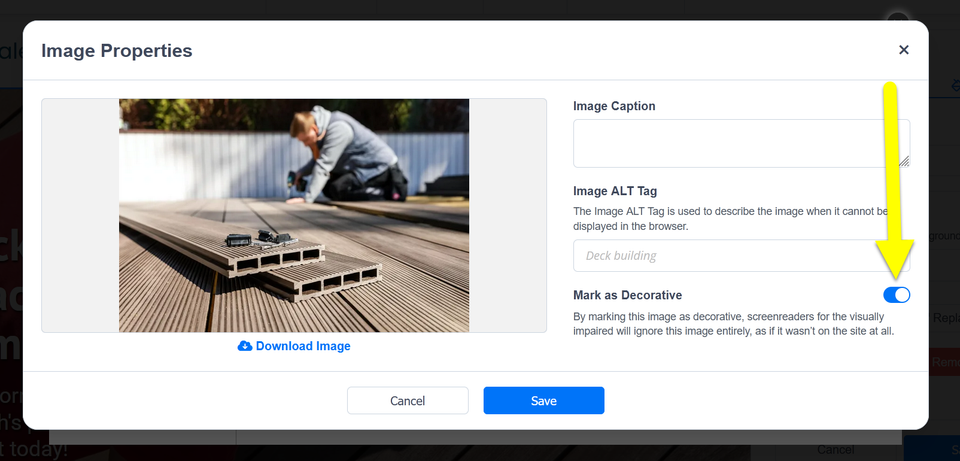
3. Use “Mark as Decorative” only when appropriate

Some images are included only for visual style and do not communicate information a visitor needs. For those images, the editor provides a Mark as Decorative option so screen readers can ignore them.

What counts as decorative?

A background flourish, texture, divider, or other purely visual image may be decorative if removing it would not cause a visitor to miss useful information.

A photo of your product, service, team, location, completed work, important graphic, or other meaningful content normally should not be marked decorative simply to avoid writing ALT text.

Seo 002 s3 ss1

Tips for writing useful ALT text

  • Describe the information that matters in the context of the page.
  • Keep the wording natural and specific rather than stuffing it with search keywords.
  • Do not automatically copy the image caption into the ALT field if the two serve different purposes.
  • Use the decorative option only when the image contributes no meaningful information.
  • When you finish editing the image properties, save your changes.

A simple example

Image: A roofing contractor installing shingles on a customer's home.

Useful ALT text: Roofing contractor installing asphalt shingles on a residential roof.

Less useful: Image123 roofing best roofer roofing company roof services.

Common questions about captions and ALT text

Do I need both a caption and ALT text?

Not necessarily. ALT text serves an accessibility purpose for meaningful images. A caption is useful when you also want to give visitors visible context or information about the photo.

Should every image be marked decorative if it does not need a caption?

No. Whether an image needs a caption and whether it is decorative are separate decisions. A meaningful image can need ALT text even when no visible caption is necessary.

Will ALT text guarantee better Google rankings?

No. ALT text can help search engines understand image context, but it should be written primarily as an accurate and useful text alternative—not as a ranking shortcut.

Keep improving your website

Image accessibility is one part of maintaining a useful, search-friendly website. Explore more owner-friendly guidance or return to the main help library for other everyday website updates.