Skip to content
Website Help Center

How to Add Links That Jump to a Section of a Page

A jump link sends a visitor directly to a specific section of your website instead of simply opening the top of a page. It can make longer pages easier to use and help visitors reach important information faster.

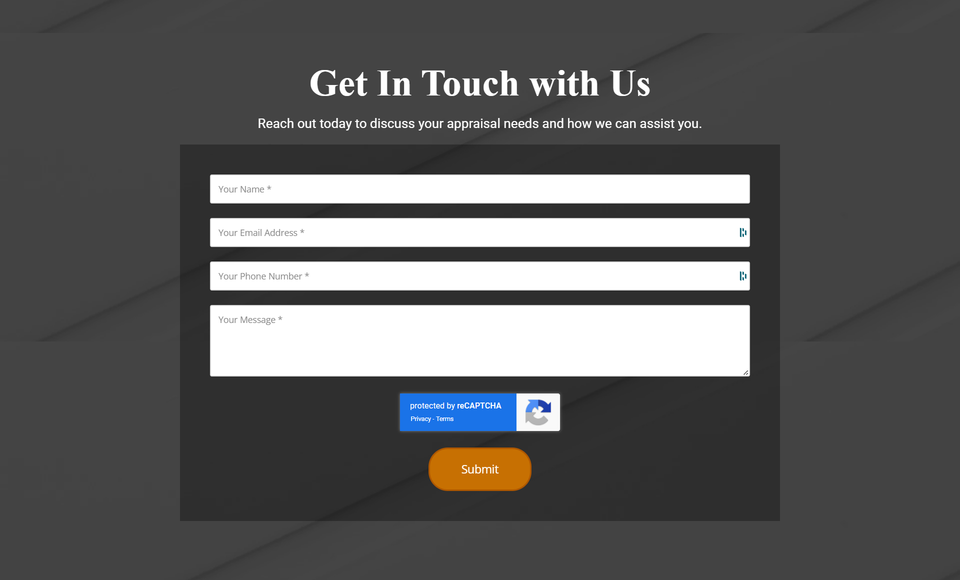
Example: a “Contact Us” button near the top of your homepage could take a visitor directly to the contact section farther down the page. You can also send visitors to a selected section on another page of your website.

Edit the button you want to use

In your website editor, locate the button that should send visitors to another section. Select the Edit option for that button to open its settings.
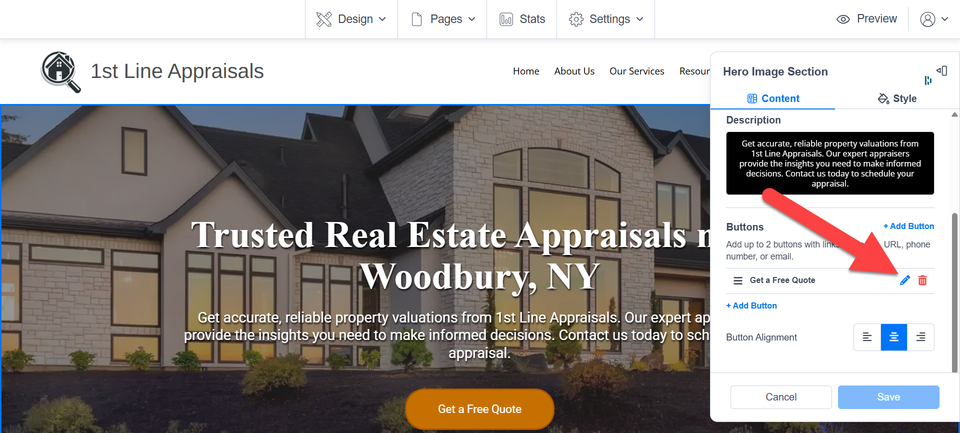
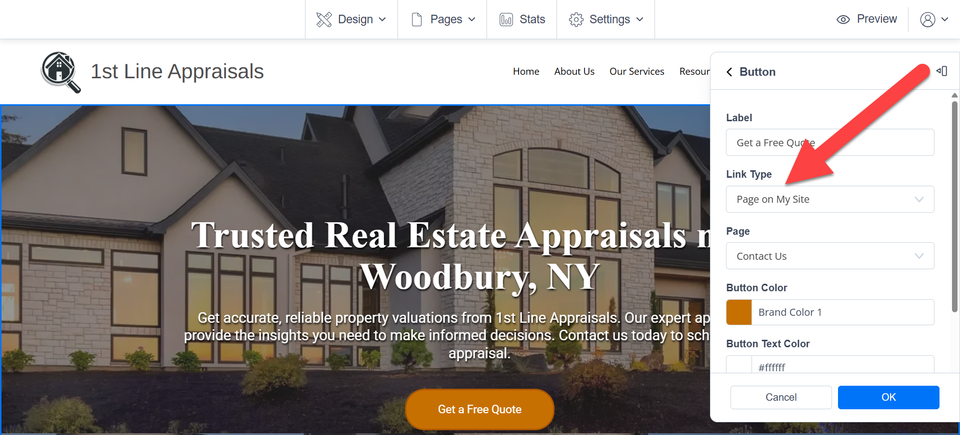
Anchor jump s1 ss1

Find the Link Type setting

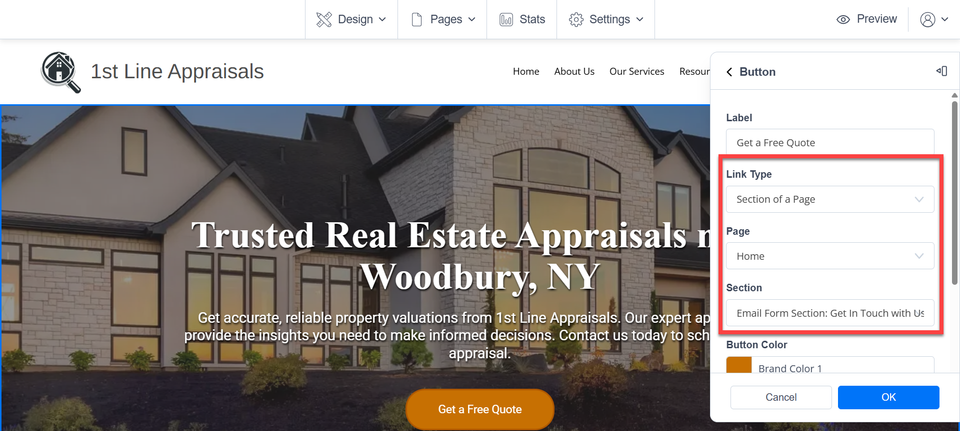
Inside the button settings, look for the Link Type dropdown. This setting controls what happens when someone selects the button.

Anchor jump s2 ss1

Choose the page and section

From the Link Type options, choose Section of a Page. Then tell the editor exactly where the button should send your visitor.

Link Type

Select Section of a Page.

Page

Select the website page that contains your destination section.

Section

Select the specific section visitors should jump to.

When the destination is correct, select OK to save the button's link settings.
Anchor jump s3 ss1

Test the button

Select the button you just linked. It should take you directly to the section you selected instead of leaving you at the top of the page.

Check the destination: make sure the button lands on the exact section you intended. If it does, your jump link is set up correctly.
Anchor jump s4 ss1

Good ways to use section links

Reach your contact area

A call-to-action button can take visitors directly to the part of the page where they can contact your business.

Navigate longer pages

Jump links can save visitors from manually scrolling through a long homepage or information page.

Point to important content

Use a button to lead visitors directly to the service, offer, testimonial, or other section you want them to see.

Common questions

Can the button jump to a section on another page?

Yes. The section-link settings let you choose the page first and then choose the specific section on that page.

Do I need to type an anchor ID or special code?

Not with the button workflow shown here. Choose Section of a Page and select the destination from the available Page and Section options.

How do I know the link is working?

Test the button after setting it up. A correctly configured button should take you directly to the section you selected.