Skip to content
Website Editing Guide

How to Adjust the Height of a Website Section

If a section of your website feels too tall or too compressed, you can adjust its height from the website editor. The Row Height control changes the amount of vertical space in that section so you can make the layout feel more compact or more spacious.

Start by opening the section

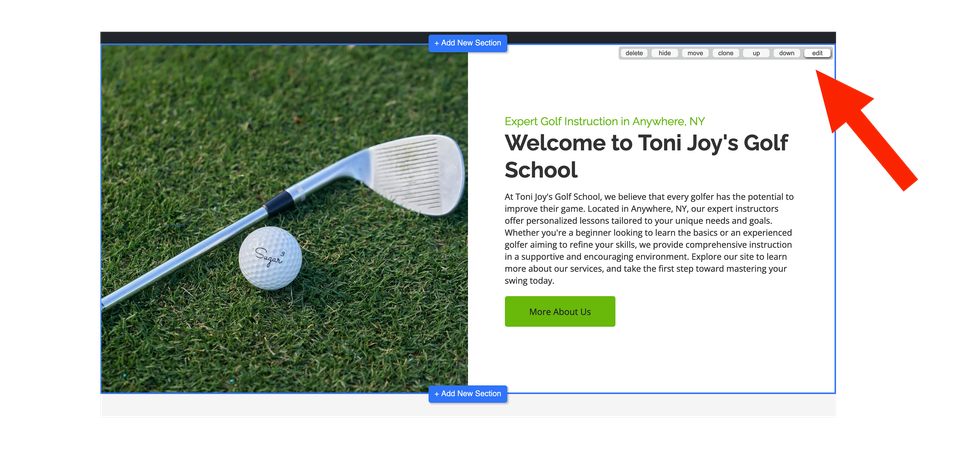
In your website editor, hover over the section you want to adjust.

Select the Edit option that appears for that section.
Article id s1 ss1

Find the Row Height setting

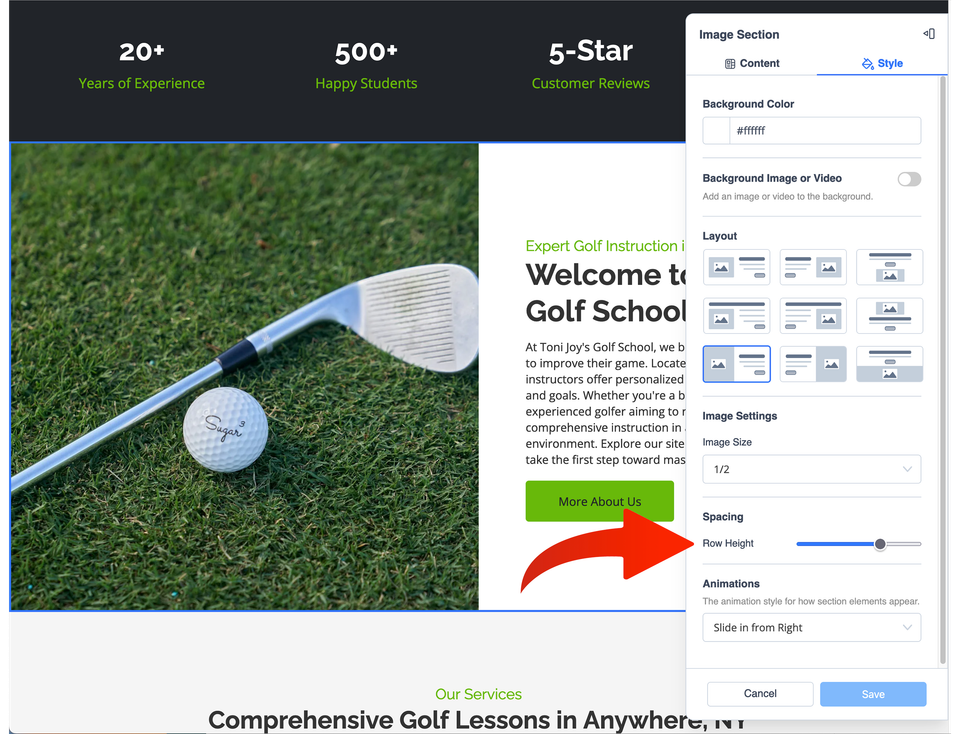
With the section editing panel open, select the Style tab. Look under Spacing for the Row Height control.

Editor path Style → Spacing → Row Height
Article id s2 ss1

Adjust the height and save your change

Once you find Row Height, the final adjustment only takes a moment.

Step 4

Adjust the slider

Move the Row Height slider until the section has the amount of vertical space you want.

Step 5

Save when finished

When you are happy with the section height, select Save to keep the change.

Design tip: Section height works best when it supports the content rather than drawing attention to empty space. A shorter section can make a simple message feel tighter and more direct, while additional space can give important content more breathing room.

Keep working on your website

Browse more step-by-step editing guides in the Website Help Center. If something in your website editor is not working as expected, the Website Technical Help section explains where to get assistance.