Skip to content

Website Help · Buttons & Links

How to Create a Tap-to-Text Button

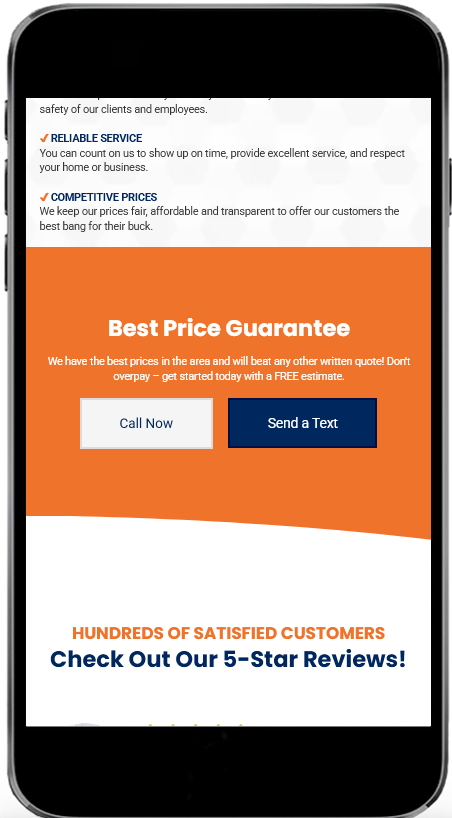
A tap-to-text button gives mobile visitors a fast way to start a text conversation with your business. When someone taps the button from a smartphone, their messaging app can open with your business number ready to use.

You can also include an optional pre-filled message to help visitors start the conversation. They can change that message before sending it.

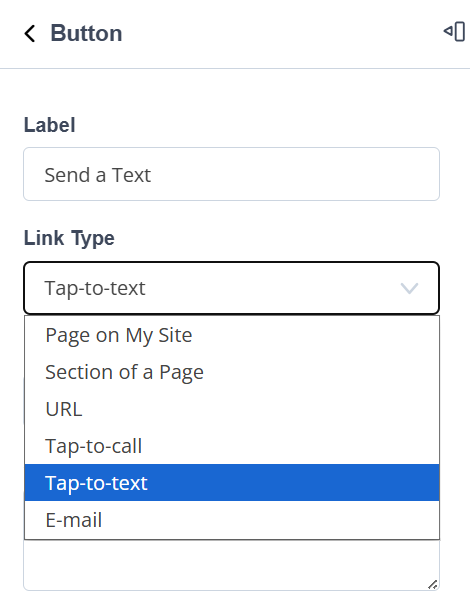
Set the button link type to Tap-to-text

Edit the button you want visitors to use. In the button's link settings, find Link Type and change it to Tap-to-text. This tells the button to start a text message instead of opening a standard webpage link.
Taptext s1 ss1

Add your button label, mobile number, and message

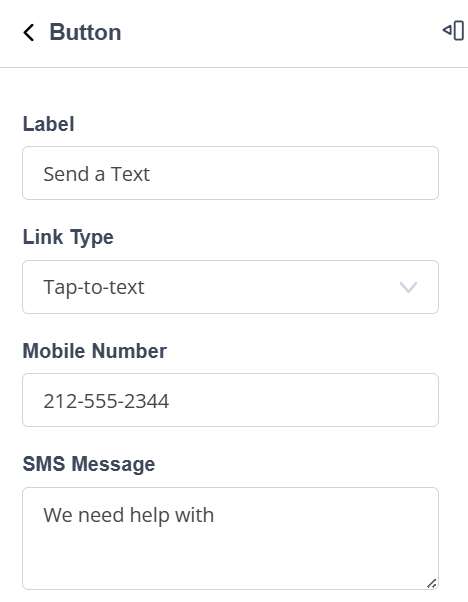
Once Tap-to-text is selected, complete the fields that control what visitors see and where their message is addressed.

Label

Enter the wording visitors will see on the button, such as Text Us or Send Us a Text.

Mobile Number

Enter a valid mobile number that can receive text messages, including the area code.

SMS Message

Add an optional message that will already be filled in when the visitor's text conversation opens.

Example: A pre-filled message could say, “Hi, I'd like more information about your services.” The visitor can edit that wording before sending it, or you can leave the SMS Message field blank.
Taptext s2 ss1

What happens when a visitor taps the button

The tap-to-text button is designed to make contacting your business easier for mobile visitors. When someone taps it from a smartphone, they can begin a text message to the mobile number you entered.

If you supplied an SMS Message, that wording appears as a pre-filled message to help start the conversation. The visitor can still edit the message before sending it.

The result: fewer steps between someone viewing your website and starting a text conversation with your business.
Taptext s3 ss1

Before you finish, check these details

  • Use a valid mobile number that can receive SMS text messages.
  • Include the area code with the mobile number.
  • Give the button a clear label such as “Text Us.”
  • If you use a pre-filled SMS message, keep it simple and easy for a visitor to personalize.
  • Test the button from a smartphone so you can see the experience your visitors will have.

Need help with another website update?

Find more step-by-step instructions for editing and personalizing your Site Before Night website.

Visit the Website Help Center