Skip to content

Website Help Center

How to Password Protect a Website Page

Password protection lets you restrict a page on your Site Before Night website so only people with the correct password can view its contents. This can be useful when a page is intended for a specific group rather than the general public.

Good to know: visitors must enter the correct password before they can access the protected page.
1

Open Manage Pages

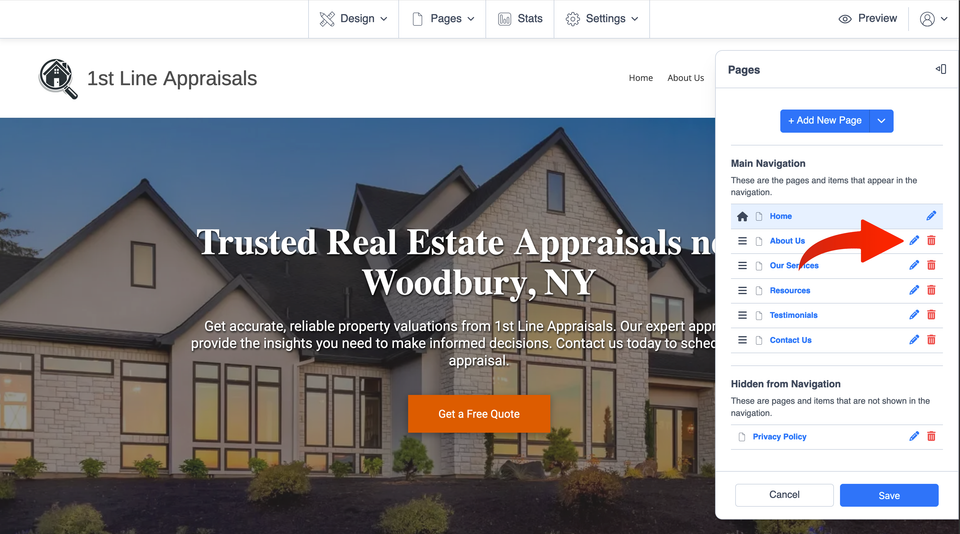
From your website editor, open Pages in the top menu and select Manage Pages.
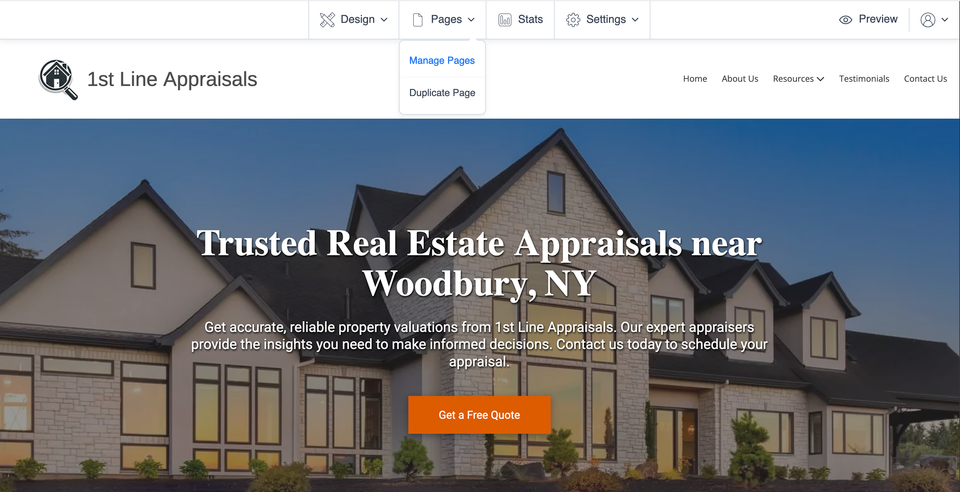
Temp pwp s1 ss1
2

Choose the Page You Want to Protect

Find the page you want to restrict and select the pencil icon beside that page. This opens the settings for that individual page.

Temp pwp s2 ss1
3

Turn On Password Protection

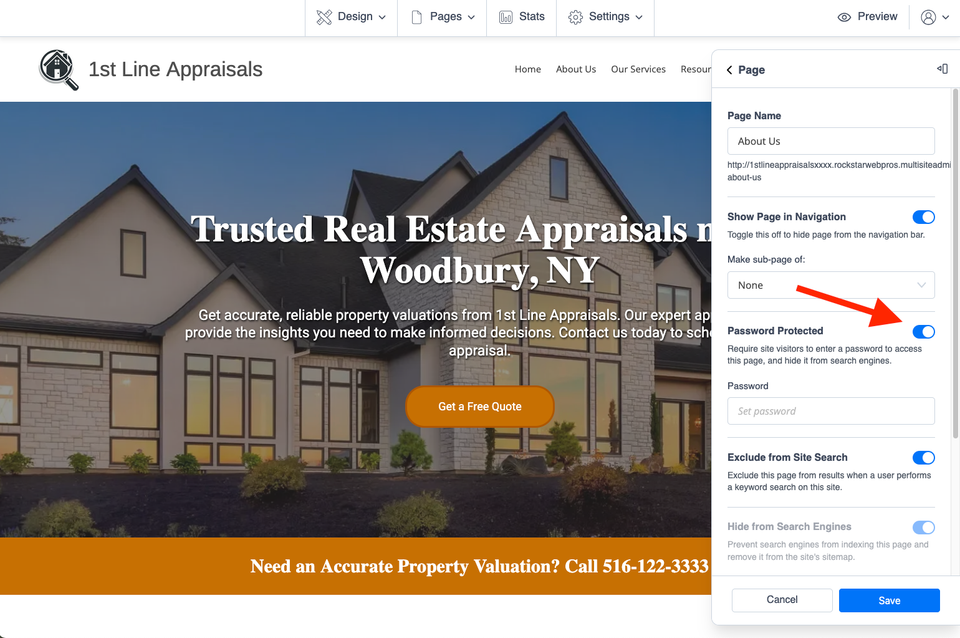
In the page settings, find Password Protected and turn the setting on. A password field will become available for the page.

Temp pwp s3 ss1
4

Enter the Page Password

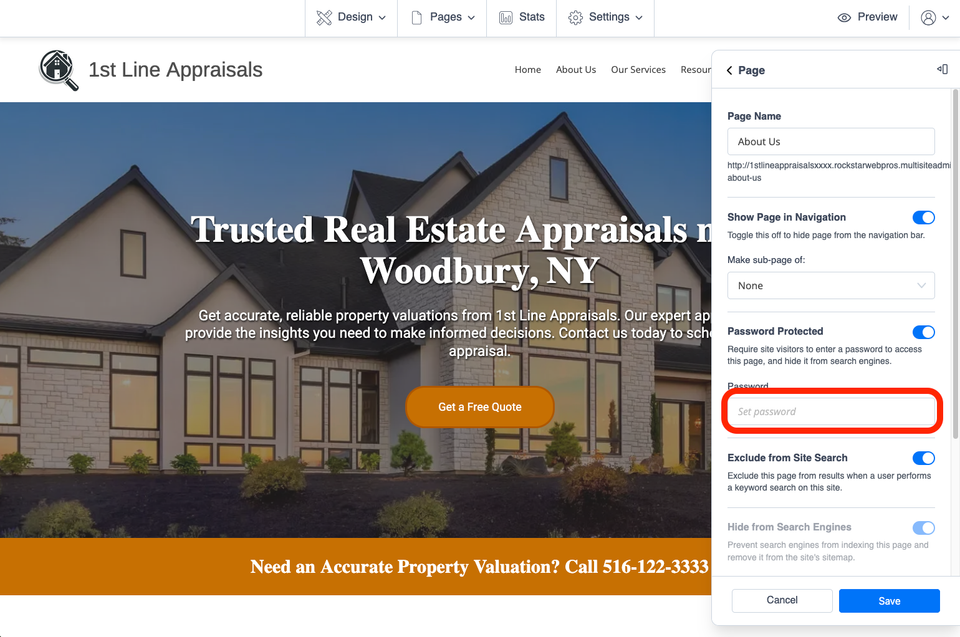
Enter the password visitors should use to open the page. Passwords are case-sensitive, so uppercase and lowercase letters must be entered exactly as you set them.

Password-Protected Pages and Search Engines

When password protection is enabled, the website editor also turns on Hide from Search Engines. That setting cannot be turned off while the page remains password protected. This is expected behavior for a protected page.

Temp pwp s4 ss1
5

Save Your Changes

Select Save after you have entered the password. The page is now set to require that password from visitors.

Test it before sharing the page. View the protected page while you are signed out of the website editor. A private or incognito browser window can also make it easier to check the page as a visitor would see it.

Temp pwp s5 ss1

What Visitors Will See

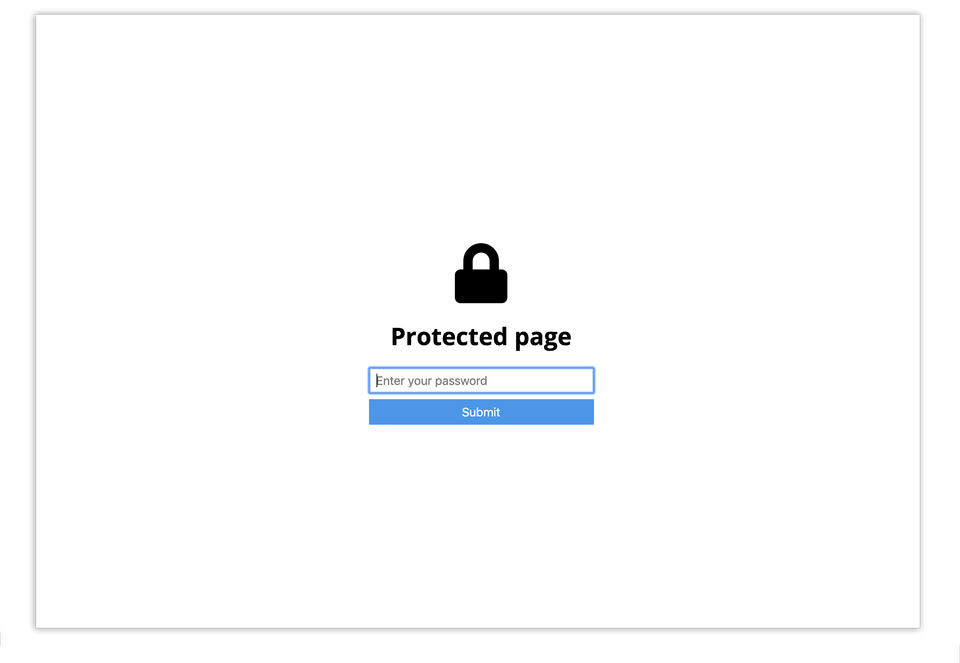
Someone who opens the protected page while not logged in will see a password prompt instead of the page contents. After entering the correct password, they can access the protected page.

Before You Share the Page

  • Remember that the password is case-sensitive.
  • Give the password only to the people who should have access.
  • Test the page as a visitor after saving your settings.
  • Remember that password protection also activates the page's Hide from Search Engines setting.

Common Questions

Are page passwords case-sensitive?

Yes. Visitors need to enter uppercase and lowercase letters exactly as they appear in the password you set.

Can someone view the page without the password?

Visitors who are not logged in must enter the correct password before they can access the protected page.

Will a password-protected page be hidden from search engines?

Yes. When Password Protected is enabled, the editor also enables Hide from Search Engines, and that setting remains on while the page is protected.