
Skip to content

Website Help Center

How to Preview and Save Website Changes

Your Site Before Night website is designed so you can make ordinary content and appearance updates yourself. A simple habit helps keep those changes intentional: open the section you want to edit, review how the update looks, then save it when you are satisfied.

1

Edit

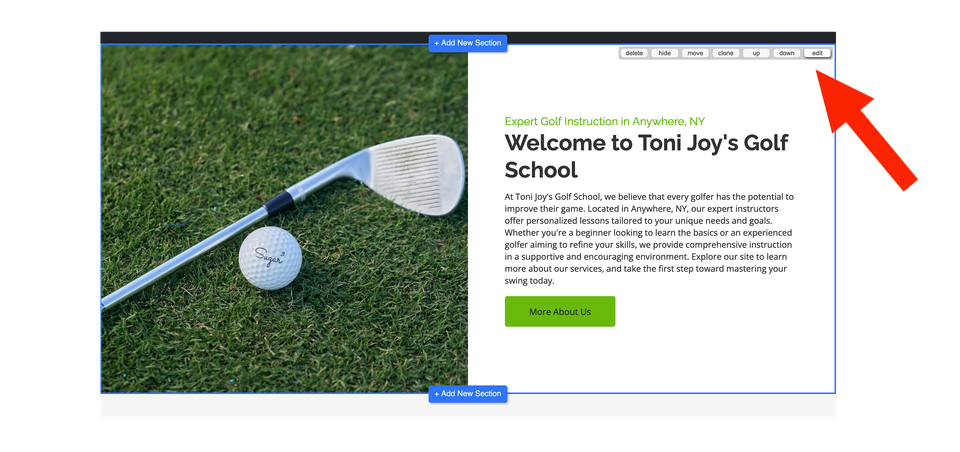
Hover over the section you want to change and select Edit.

2

Preview

Review the page and use the editor's Preview option when you want to check different screen sizes.

3

Save

When the change looks the way you want, select Save to keep your update.

Start with the correct section. Move your pointer over the area you want to update and look for the editing controls that appear. Selecting Edit opens that section's editing options.
H 004 s1 ss1

Make Your Content Change

After you open a section for editing, use the Content tab when you need to change the information or other main elements inside that section.

Keep the edit focused

Make the update you came to make, then review the surrounding content before moving on. For example, if you change a phone number, business hour, service description, or call-to-action, make sure the information is complete and easy for a visitor to understand.

Tip: Review the wording as well as how it fits within the section.

H 004 s2 ss1

Review How the Change Looks

Content is only part of the finished result. If you are adjusting the appearance of a section, the Style tab contains its visual options. Before saving, review the finished page rather than judging the setting by itself.

Check the Style

Use the Style tab when the change involves the section's look and feel. Make sure text remains readable and the section still works visually with the rest of the page.

Use Preview

Use the editor's Preview option to review the website at different screen sizes. This is especially useful before keeping a visual change.

H 004 s3 ss1

Review How the Change Looks

Content is only part of the finished result. If you are adjusting the appearance of a section, the Style tab contains its visual options. Before saving, review the finished page rather than judging the setting by itself.

Check the Style

Use the Style tab when the change involves the section's look and feel. Make sure text remains readable and the section still works visually with the rest of the page.

Use Preview

Use the editor's Preview option to review the website at different screen sizes. This is especially useful before keeping a visual change.