Skip to content

Website Help Center

How to Update Social Media Links

Social media icons give visitors an easy way to move from your website to your business's social profiles. You can update the links in an existing Social Icons section or add a Social Icons section if your website does not already have one where you want it.

Already have social icons? You can skip the section-adding steps below and go directly to editing the Social Icons section's Content settings.

Add a Social Icons section if you need one

  1. Go to the page and location where you want your social media icons to appear.
  2. Select + Add New Section.
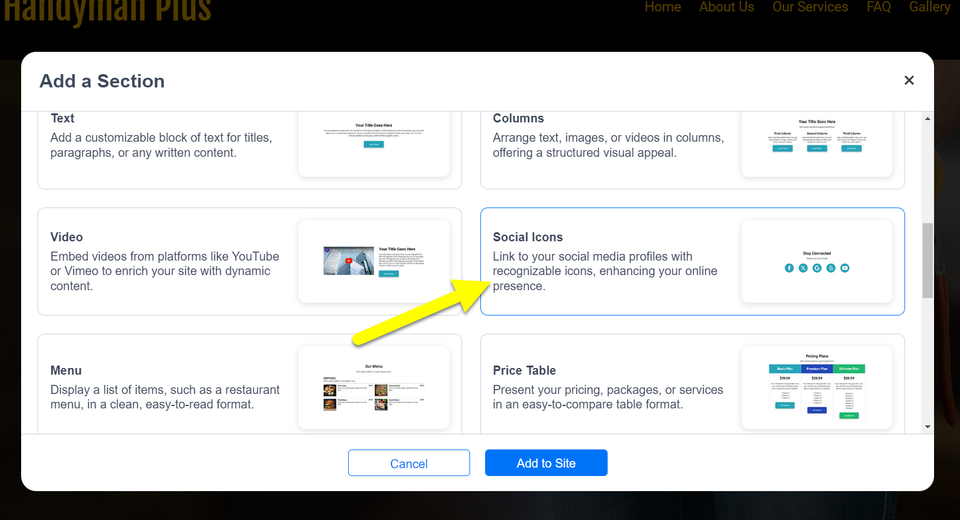
  3. Choose the Social Icons option.
  4. Select Add to Site to place the section on the page.
H 012 s1 ss1

Add or change your social media profile links

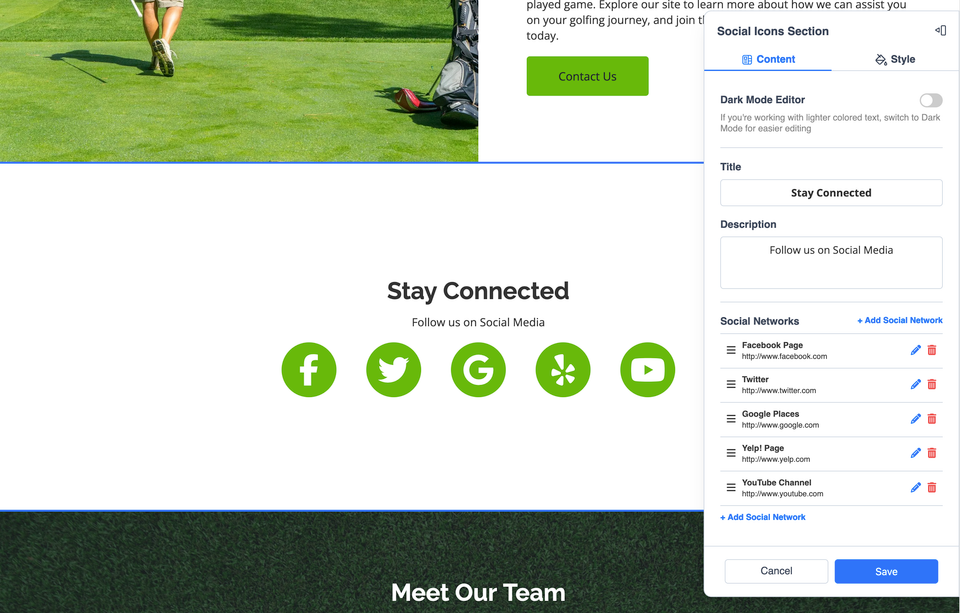
Once the Social Icons section is on the page, open the section for editing. This is also where you can update links that were already added to your website.

Use the Content tab

Open the Content tab and add or update the links for the social media channels you want visitors to reach. Make sure each link points to the correct business profile.

H 012 s2 ss1

Adjust the appearance of your social icons

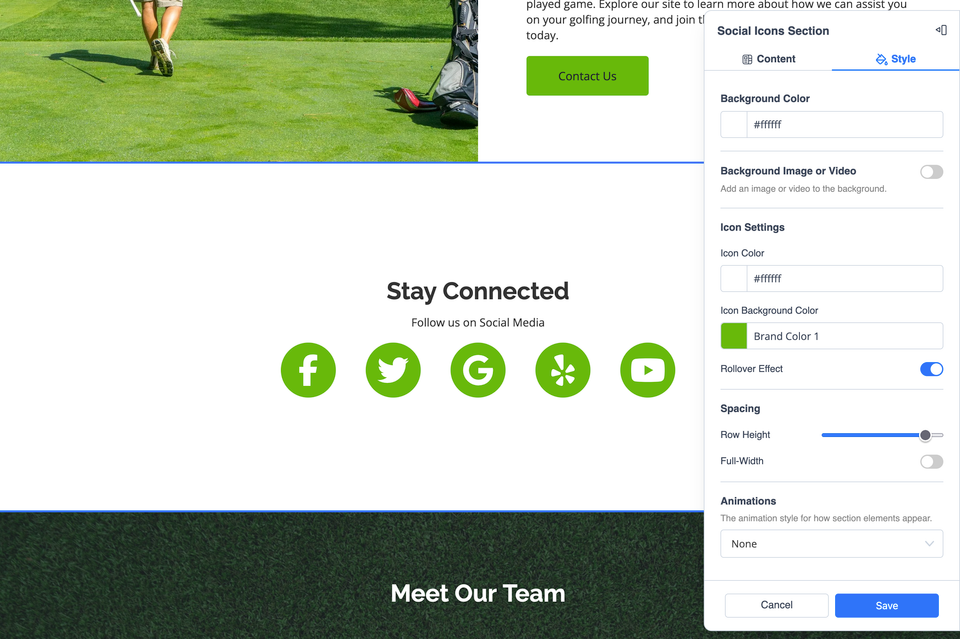
If you want to change the way the Social Icons section looks, open its Style tab. The Style controls let you modify the colors and design of the section.

Keep the section easy to recognize and consistent with the rest of your website. You do not need to change the styling when your existing social icons already fit your site.

H 012 s3 ss1

Save your changes and check your links

When you are finished updating the links and appearance, be sure to Save your changes. Then check the social icons to make sure they lead visitors to the intended business profiles.

  • Confirm that each icon points to the correct social media profile.
  • Use your current business profiles rather than outdated or unrelated accounts.
  • Check the finished section at both desktop and mobile sizes.

Need more website help?

Browse the Website Help Center for more everyday editing guidance. If something in the website editor is not working as expected, visit Website Technical Help.