Skip to content

Website Editor Help

How to Use Dark Mode While Editing Your Website

Lighter-colored text can sometimes be difficult to see against a light editing background. When that happens, the Dark Mode option in your website editor gives you better contrast so the content is easier to see and work with.

Step 1

Turn on Dark Mode in the editor

Open the website content you want to edit. In its editing panel, find Dark Mode Editor and turn the switch on.
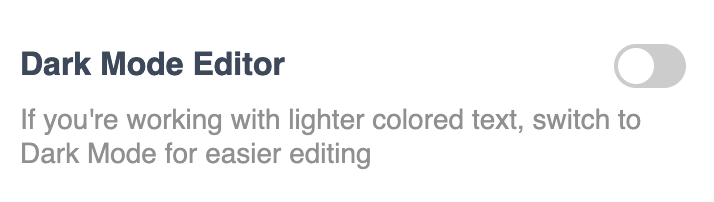

Dark s1 ss1
Step 2

Edit lighter text with better contrast

Once Dark Mode is enabled, the editing view gives lighter-colored text a darker background so it is easier to see while you make changes.

Continue editing the content you need, such as the title or description shown in the editor. The goal is simply to make light text easier to work with while you are editing.

Dark s2 ss1

When Dark Mode is useful

Dark Mode is a simple visibility aid for times when lighter website text is difficult to see inside the editor. Use it when you need the extra contrast, then continue making your normal content updates.

Use it for light text

Turn Dark Mode on when white or other light-colored text blends into the normal editing background.

Keep your text easy to see

The darker editing view gives you more contrast while you review and update lighter-colored content.

Turn it on where needed

Because the option is used with the individual content you are editing, enable it wherever you need better visibility.